

Home › Forums › Software Discussions › Adobe Software › How do I : Removing Background from a photo ??
-
How do I : Removing Background from a photo ??
Posted by Adrian Neill on 28 April 2009 at 09:30Morning all !!
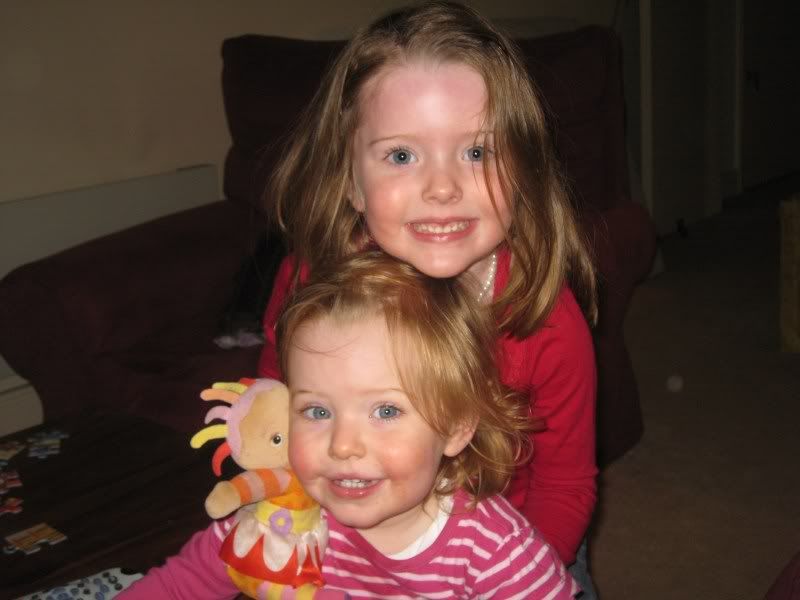
I’ve been asked by a friend if I can remove the background from this
picture. I’m going to print it onto vinyl for him. The problem is my
photoshop skills are non-existant !! I use Corel Draw most of the time
so have never got to grips with this program.Is there a ‘simple’ way of doing this ??
I do have a copy of Photoshop CS2 if that makes any difference ??
This is the pic I need to remove the background on ………
 Alan Drury replied 16 years, 8 months ago 12 Members · 15 Replies
 -
15 Replies
-

In photoshop you need the polgonal or the magnetic tool you will need to draw around the shape you want to cut out once this is done just simply grap the shape you have created and move it into another document hope this makes sense!!
-

in Corel x3 from the bitmap drop down select edit bitmap which opens photo paint, use the magic wand tool to select area of picture or background (if selecting background you will need to use invert mask from the mask dropdown to retain children) exit photopaint saving changes. keep a copy of the original file in case you want to redo though.
John
-

Hi John …. if it can be done in X3 that’ll be great !!
I’ve got it into the ‘Edit Bitmap’ page …… sorry to sound thick, but where do I find the ‘Magic Wand’ tool ??
-
You could use Coreldraw bezier tool to cut around the portion you want to keep and then use intersect.
-
Hi Gordon …. I tried that and it didn’t look that good to be honest.
I’ve found the Magic Wand tool but the mask thing is baffling me now !! 😕
This is going to take a while. :lol1: -
quote :I’ve got it into the ‘Edit Bitmap’ page …… sorry to sound thick, but where do I find the ‘Magic Wand’ tool ??
its on the same toolbar flyout as rectangle mask – the one next to the object pick tool (pointy arrow)
John
-

http://search.about.com/fullsearch.htm? … 0photoshop
if you go to about.com and type in your question…this place is stuffed full of tutorials.
I have learnt loads from it.
Good luck
happy photoshopping
cheryl -

Adrian,
The only way you will sort out the hair will be to draw around the subject with the pen tool (Photoshop) a brief explanation here:-http://www.melissaclifton.com/tutorial-pen tool.html
Do a Google search for ‘Photoshop pen tool’, there are dozens more explanations of how to use it.
-

can you not use the cutout lab in corel photo paint?? (pair of scissors in drop down menu on task bar)….(image)
-

most simple way is to make everything in the background black and the gaps between the hairs won’t matter 😉
Simples 😉
-

Try the ‘Extract’ tool in the ‘Filter’ menu. I’ve had good results with this. I’m not 100% sure it’s included in version CS2 though…
-

Simples way in all honesty is to get your mate to take the picture again with a white sheet under the girls and behind them.
Then you have a solid area with more contrast in relation to the subject colours which you will find easier to select.
If you can’t do that I would select the colours you want to keep and mask the inside, I would use the full option of tools changing them for different areas as I went. Creating a mask. Invert this mask and then also add a bitt off feathering to soften the edge before removing the background.
Clear as mud.
Tim
-

I would’ve just printed the whole thing, then cut out the background wiv a scissors 😕
-

Use cut out lab in X3 or X4, this will also sort out the fine hair. From Draw – edit bitmap this will launch PhotoPaint, – image – cut out lab. Draw round it.
Alan D


Log in to reply.